How to record your Android screen and share it as a link
Record the screen with sound, trim it, then turn the video into a link anyone can open: Google Drive, Google Photos or a direct share. Plus how to keep the file small and what to hide before you send it.
Sending a screen recording as a link instead of a big attachment is handy: the other person opens it in a browser, nothing fills their chat, and you can switch the link off later. Many desktop tools now do "record and get a link" in one step by uploading to their own servers. On Android you can get the same result in about a minute with the apps already on your phone, and you keep control of where the video lives.
1. Record the whole screen, not one app
On Android 14 and later the system capture prompt often starts on "A single app". If you want menus, notifications and app switching in the video, choose "Entire screen" before you tap Start. Turn on Do Not Disturb first so private messages do not pop up in the recording.
2. Keep the file small enough to upload fast
- 720p, 30 fps is plenty for showing steps in an app or a bug. 1080p 60 fps is for games and smooth scrolling.
- A lower bitrate (for example 4 Mbps) roughly halves the size of a 8 Mbps file. One minute at 4 Mbps is about 30 MB.
- Trim the start and end. Most recordings have a few seconds of fumbling for the stop button.
- For a quick reaction in a chat, a short GIF (a few seconds) is often better than a video.
3. Turn the video into a link
Google Drive: tap Share on the recording, choose Drive and upload. In Drive, open the file's menu, tap Share, then Manage access, set General access to "Anyone with the link" and tap Copy link. The viewer can watch in the browser without the app.
Google Photos: if your videos back up to Photos, select the recording, tap Share and Create link. Good for friends and family; anyone who has the link can see it.
Direct share: if the other person uses the same messenger, sending the file directly is fastest for short clips. Most messengers compress video, so use a cloud link when quality matters.
4. Before you send the link
- Watch it once. Look for phone numbers, email addresses, names in a chat list or a notification that slipped in.
- "Anyone with the link" means anyone the link is forwarded to as well. For work, share with specific email addresses instead.
- When the link is no longer needed, switch access back to Restricted or delete the file in the cloud.
Why not one-tap instant links?
An "instant link" means the video goes to someone's server the moment you stop. That is convenient, but it also means your screen, which may include messages and accounts, sits on a service you may not control. Keeping the recording on your phone and choosing where to share it takes one extra step and keeps that decision with you.
Recording with Record King
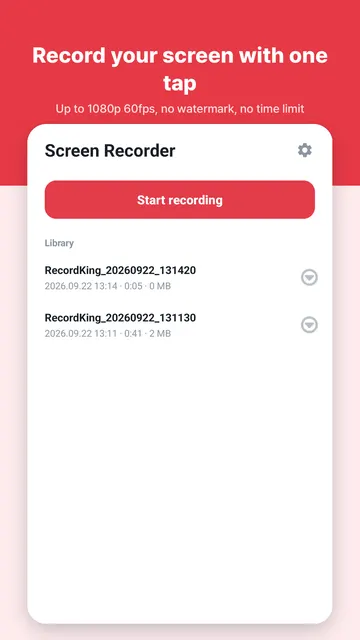
Record King records the whole screen up to 1080p 60 fps with internal app audio or your microphone, with no watermark and no time limit. A floating button lets you pause or stop from any app. When you stop, a notification shows a thumbnail with Play, Share and Trim. Record King does not upload your videos anywhere and has no account: the file stays on your phone until you share it, so the link is always made in the cloud you choose.