192.168.1.1 not opening? 8 checks before you reset your router
Why the router admin page at 192.168.1.1 or 192.168.0.1 does not load, and a step-by-step checklist to reach it from a phone without resetting anything.
You type 192.168.1.1 into the browser to change the Wi-Fi password, and nothing happens: the page spins, says "site can't be reached", or opens something else. Almost always the router is fine. One of the eight things below is in the way.
1. Make sure you are on the router's Wi-Fi
The admin page only answers inside your home network. If your phone has quietly switched to mobile data, or is connected to a neighbour's open network or a Wi-Fi extender with its own address, the page will never load. Turn mobile data off for a minute and try again.
2. Your router may not use 192.168.1.1
Many routers use 192.168.0.1, 192.168.1.254, 10.0.0.1, 192.168.8.1 or a name like a local web address printed on the label. The address you need is your default gateway. On Android it is under the Wi-Fi network's details; on iPhone, tap the (i) next to the network and look at "Router".
3. Type it in the address bar, not the search box
Some browsers send "192.168.1.1" to a search engine. Type http://192.168.1.1 with the http part, in the address bar.
4. Try https and other ports
Newer routers redirect to https and show a certificate warning that looks like an error. Others use a port such as 8080 or 8443. If plain http does nothing, try https:// and accept the warning for your own router only.
5. Turn off VPN and private DNS for a moment
A VPN app sends all traffic through a tunnel, so local addresses are unreachable. Some "private DNS" or ad-blocking settings do the same. Pause them while you use the admin page.
6. Check for a mesh or provider app
Mesh systems and some provider routers have no browser admin page at all and are managed only from their own app. The label on the router usually says so.
7. Restart, do not reset
Unplug the router for 30 seconds and plug it back in. A restart keeps your settings. A reset (holding the pin hole button) wipes everything, including your Wi-Fi name and password and your provider login, so leave that for last.
8. Find the login
Once the page opens, the username and password are on the router's label, often "admin" with a password printed underneath. If someone changed it and nobody remembers, a reset is the only way back.
Doing it from your phone with Routerdesk
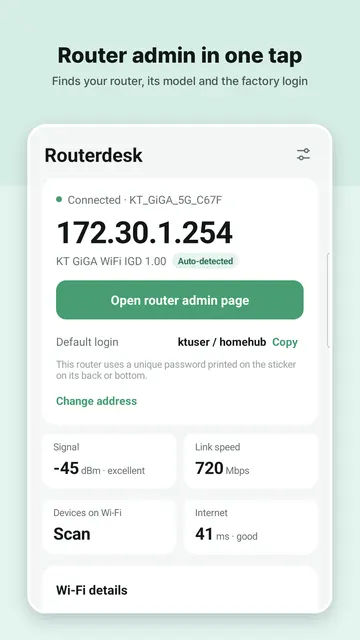
Routerdesk finds the router address on your network automatically, tries http, https and the common admin ports, and opens the admin page inside the app. It also runs a Wi-Fi speed test and has step-by-step guides for changing the Wi-Fi password, so you do not have to remember any of the numbers above.