Is my router hacked? 9 warning signs and a 10-minute check from your phone
How to tell if your home Wi-Fi router has been hacked or someone is using your Wi-Fi: the real warning signs, a step-by-step check you can do from a phone, and what to change right away.
In mid-November 2026 a single newly installed router was reported to have flooded the US air-traffic network with data and grounded flights across the country, and in France a postal subsidiary was hit by a large cyberattack. That was a fault in a professional network, not a home hack, but it reminded a lot of people that the small box under the TV runs everything at home. The question people search is simple: is my router hacked, and how do I check?
1. Warning signs worth taking seriously
- Your admin password no longer works, and you did not change it.
- Devices you do not recognise keep appearing on your Wi-Fi, especially while everyone at home is asleep.
- Websites send you to strange pages, show certificate warnings or fake login pages. A changed DNS setting in the router can do this to every device at once.
- Settings changed on their own: a new Wi-Fi name, remote management switched on, new port forwards, a new admin account.
- Internet is slow all the time even when nobody is using it, and the router lights blink nonstop.
- Your internet provider tells you your connection is sending spam or attack traffic.
Slow internet on its own is usually not a hack. Crowded Wi-Fi channels, an old router or a problem at the provider are far more common. Look for two or more of these signs together.
2. A 10-minute check from your phone
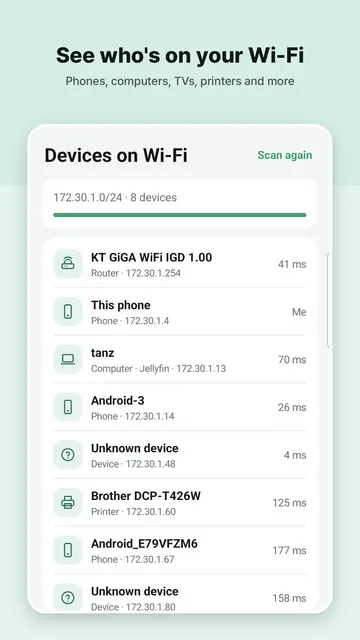
- List every device on your Wi-Fi. Count phones, laptops, TVs, speakers, cameras and printers in your home and compare. "Unknown device" is often just a smart plug or a phone that hides its name, so switch your own devices off one by one before you panic.
- Open the router admin page (often 192.168.0.1 or 192.168.1.1) and sign in. If the factory login on the sticker still works, change it now: anyone on your Wi-Fi can try it too.
- Check DNS. In the WAN or Internet settings the DNS servers should be "automatic" or ones you chose yourself. Unknown addresses there are a red flag.
- Check remote management. "Remote management", "Web access from WAN" or "Cloud access" should be off unless you use it.
- Check port forwarding and UPnP. Remove any rule you do not recognise. If you do not run game servers or cameras that need it, turning UPnP off is the safer setting.
- Look at the Wi-Fi security mode. Use WPA2 or WPA3 with a long password. WEP or an open network can be joined by anyone nearby. Turn WPS off.
- Update the firmware. Most real router hacks use old firmware with known holes. If the maker no longer releases updates, it is time for a new router.
3. If you think it was hacked
- Reset the router to factory settings (the small reset hole, about 10 seconds), then update the firmware before you set it up again.
- Choose a new admin password and a new Wi-Fi password, different from each other.
- Change passwords for email and banking from a device you trust, and turn on two-step sign-in.
- If the router is from your internet provider, call them: they can push a firmware update or replace it.
How Routerdesk helps
Routerdesk is a router admin and Wi-Fi tool, not antivirus. It does not watch your traffic. What it does is make the checks above quick from a phone: Devices on Wi-Fi lists everything connected with its address and type, Router port forwards shows what devices have opened to the internet through UPnP, Port scan shows open services on your router or any device you own, and the step-by-step guides walk you to the right menu to change the Wi-Fi password, block an unknown device or update firmware. The password generator makes a strong Wi-Fi password and shares it as a QR code.
New: Security check. In the Tools tab, one tap checks your Wi-Fi security mode (WEP, open network, WPS), risky open ports on the router such as Telnet, ports opened to the internet through UPnP, whether your DNS answers for names that do not exist (a sign of redirection), and devices that are new since your last check. It then lists what only you can check (admin password, firmware, remote management) and opens the right menu. On Android.