How to use the Sweepnook exam room monitor (with pictures): baseline, watch, vibration alert, find the seat, report
A picture guide to the Sweepnook 3.0 exam room monitor for proctors: take a baseline in the empty room, start watching, check silent vibration alerts, walk to narrow down the seat and share a one-page PDF report.
Sweepnook 3.0 turns the proctor's phone into an exam room monitor that stays on the front desk for the whole exam. Before candidates enter it records the Bluetooth and Wi-Fi signals of the empty room, then it announces only new signals that stay, with a silent vibration. No internet is needed and records stay on the phone.
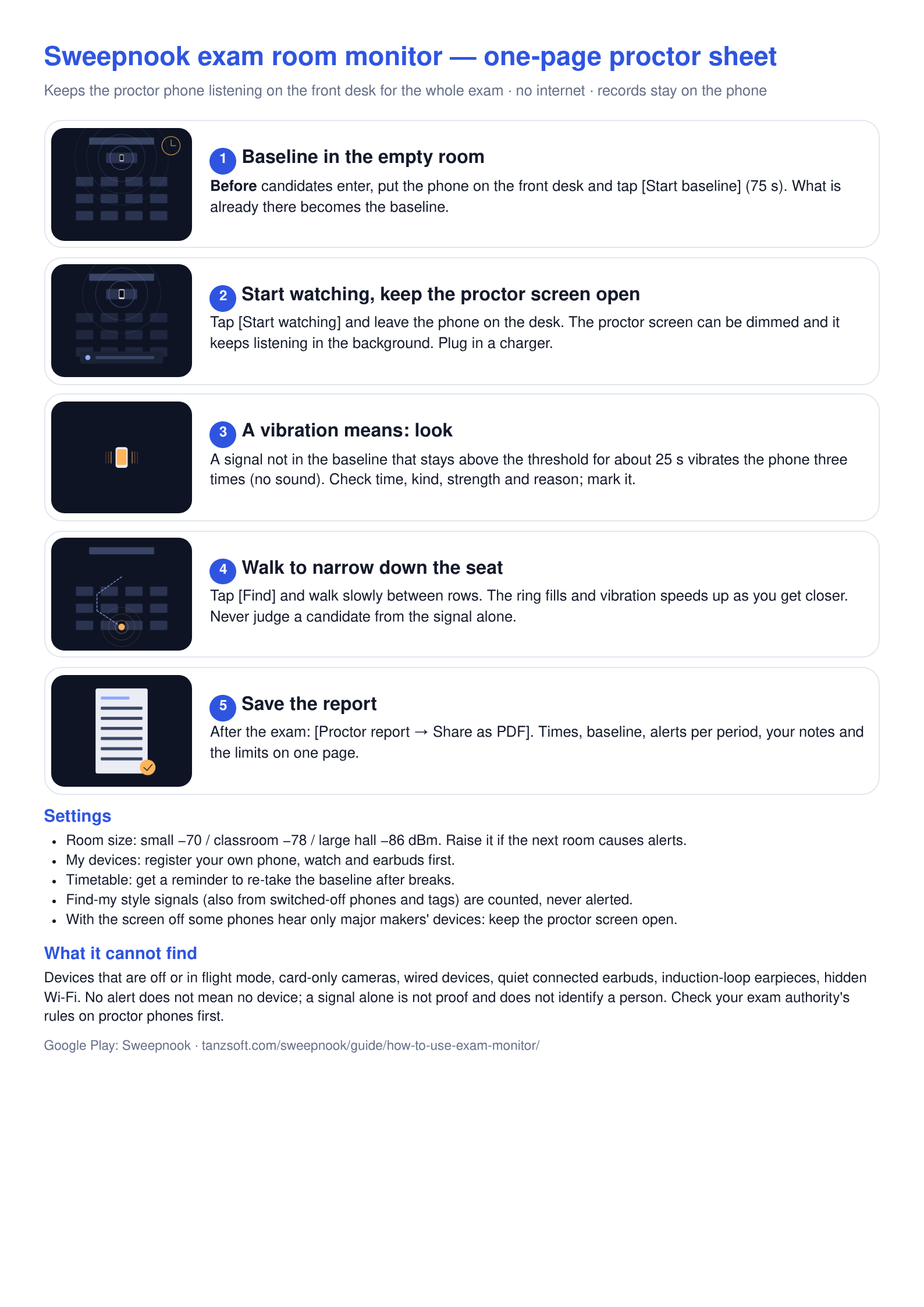
Download the one-page proctor sheet (A4 PDF) · picture (PNG)
1. Baseline in the empty room (60–90 s)
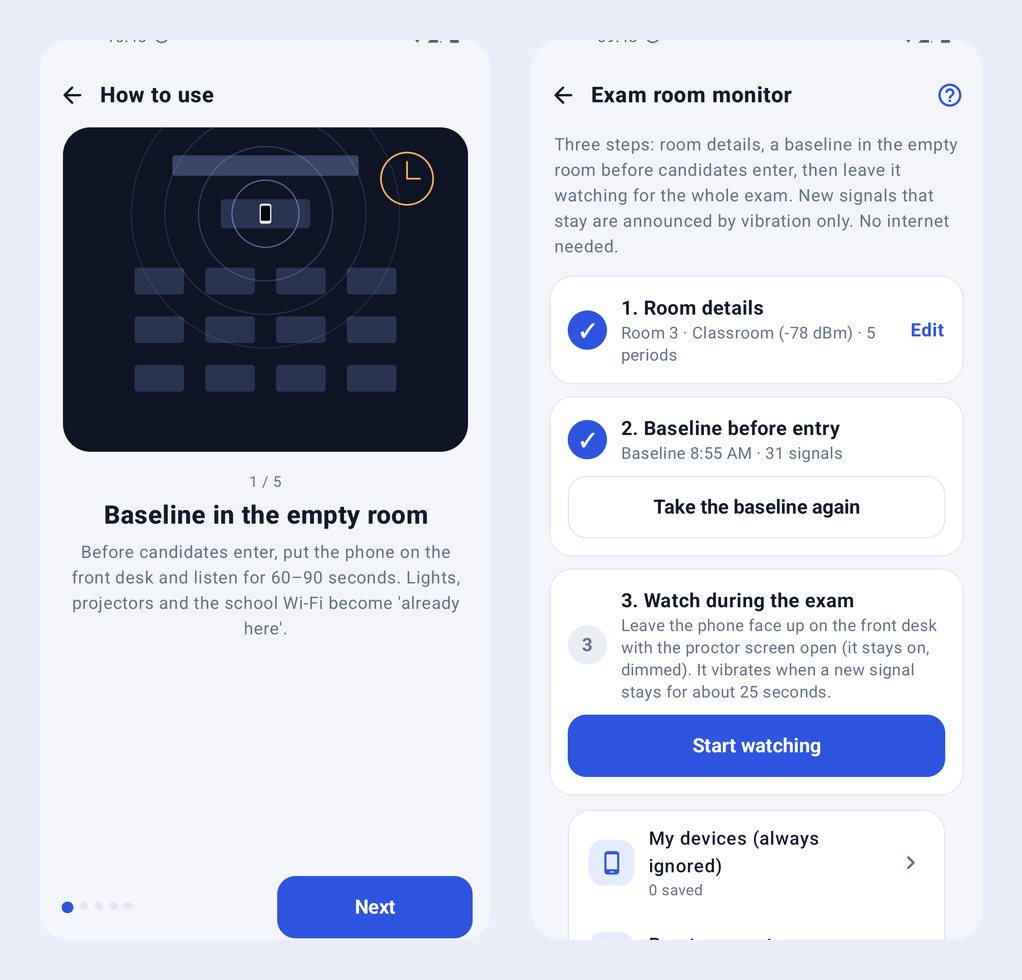
Tap Exam room on the home screen and fill in the room details (exam name, room number, room size, timetable). Then, before candidates come in, put the phone on the front desk and tap Start baseline. For 75 seconds (60 or 90 selectable) it collects what is already there: lights, projectors, the school Wi-Fi. The screen stays on meanwhile.
- Room size: small room −70 dBm, classroom −78 dBm, large hall −86 dBm. Weaker signals (next room, corridor) are folded away as distant.
- My devices: register your own phone, smartwatch and earbuds so they never alert.
2. Start watching, phone on the desk, proctor screen open
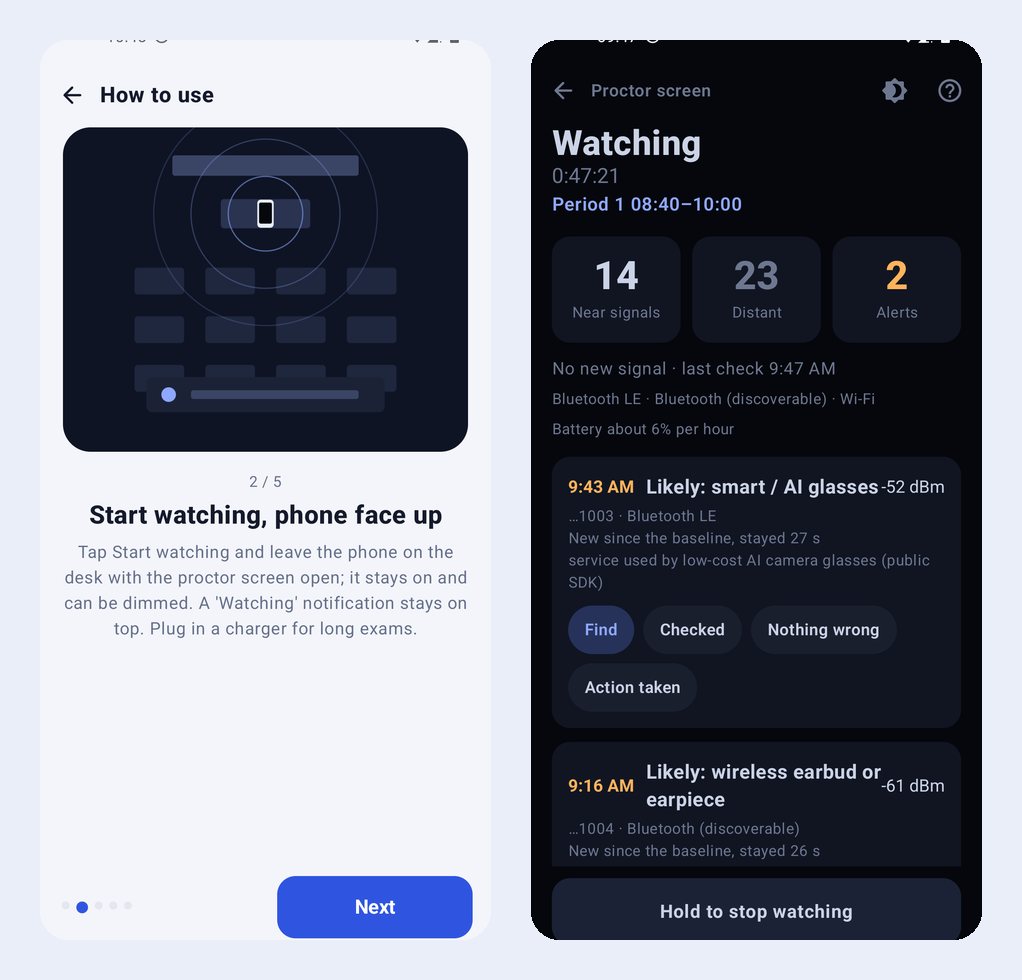
Start watching opens a dark proctor screen with near and distant signals, alerts, the current period and the last check time in large type. It can be dimmed, and it keeps listening with a 'Watching' notification even if you switch apps. With the screen off some phones (Samsung, for example) only hear devices from major makers, so keep the proctor screen open. Plug in a charger for long exams. Stopping needs a long press, so it is not ended by accident.
3. A vibration means: look
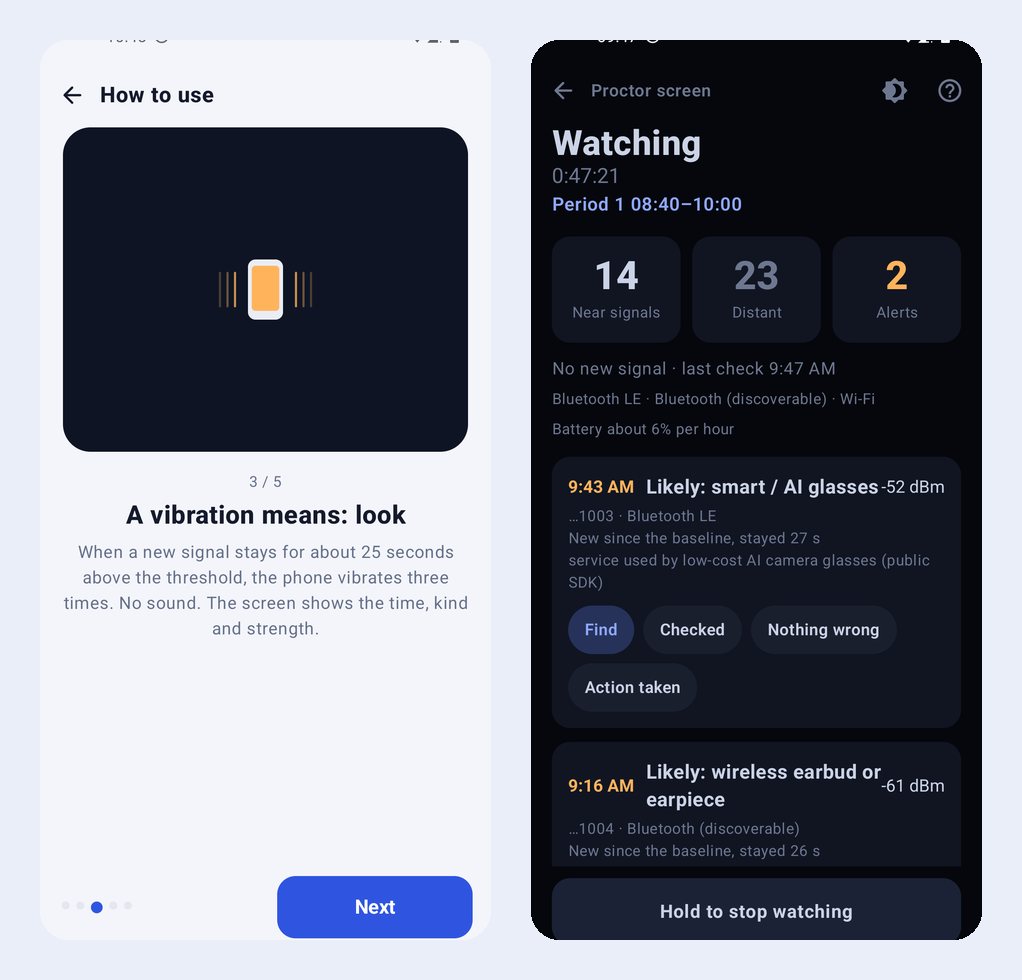
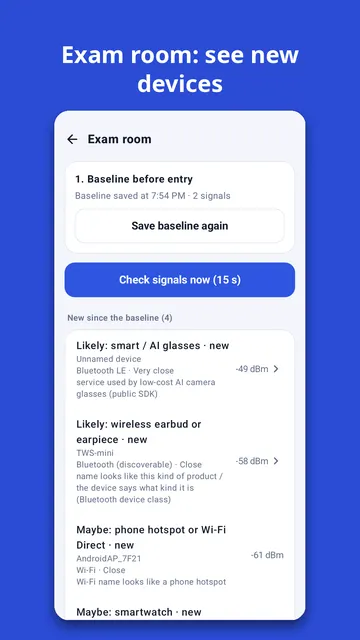
When a signal that was not in the baseline stays above the threshold for about 25 seconds, the phone vibrates three times (sound is off by default). The alert card shows the time, the likely kind (for example 'Maybe: smart glasses'), strength and the reason. Mark it Checked · Nothing wrong · Action taken.
- Devices that change their Bluetooth address every few minutes are grouped by their broadcast pattern and not counted as new.
- Find-my style signals, also sent by switched-off phones and tags handed in at the front, are counted but never alerted.
4. Walk to narrow down the seat
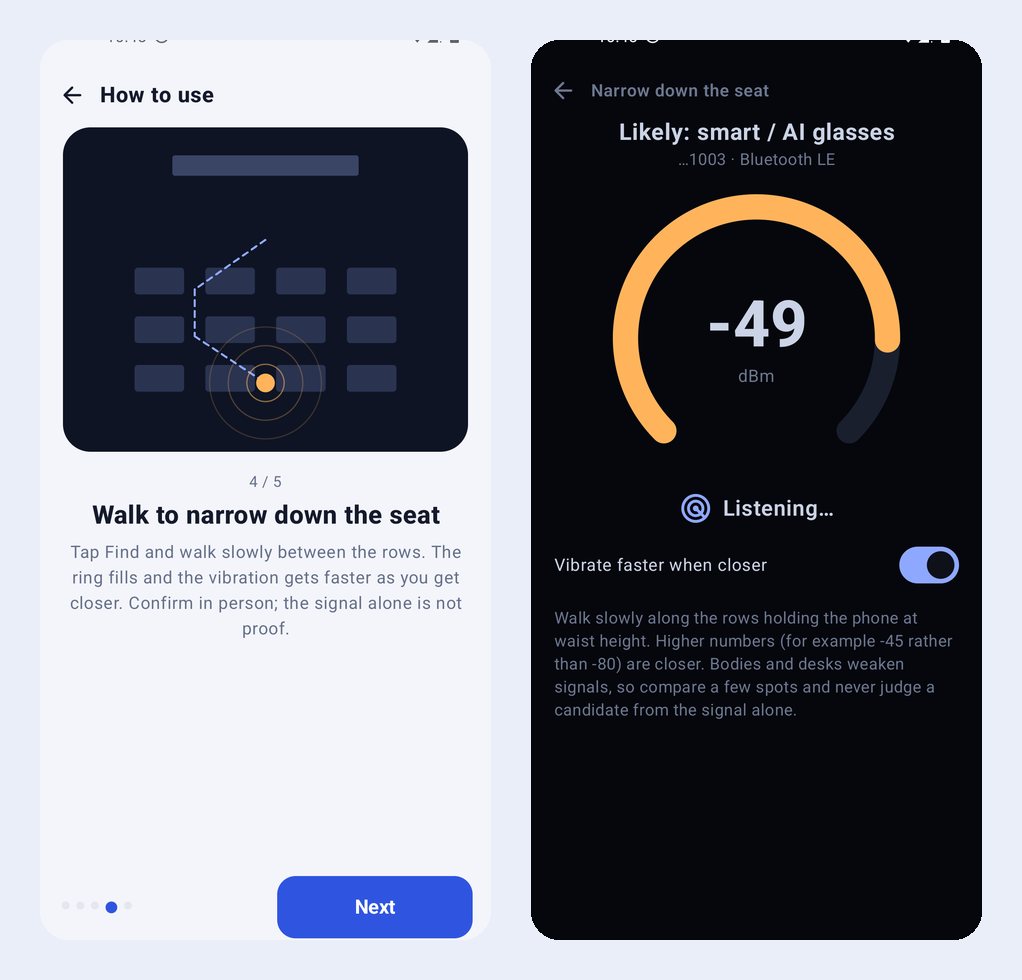
Tap Find and walk slowly between the rows with the phone at waist height. The ring fills, the number rises (−45 is closer than −80) and the vibration speeds up as you get closer. Bodies and desks weaken signals, so compare several spots and never judge a candidate from the signal alone.
5. Save the report
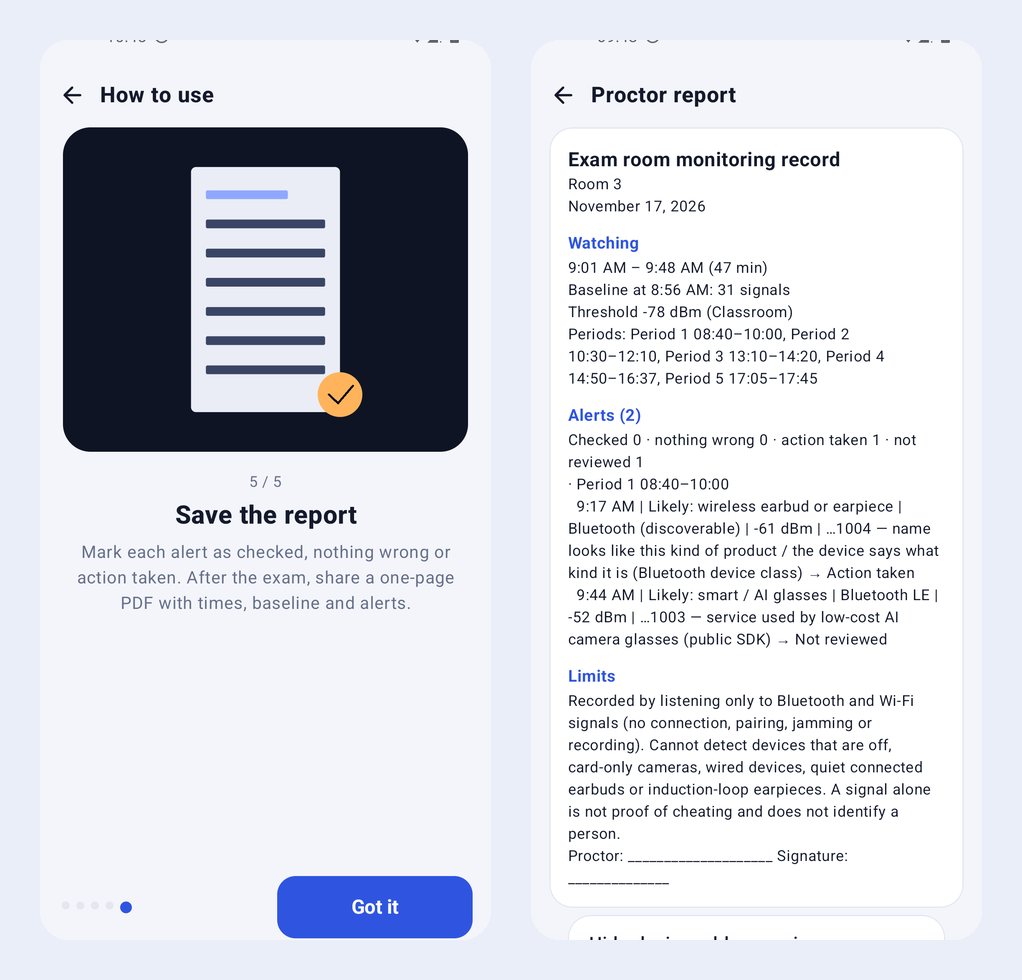
After the exam, share a one-page PDF from Proctor report: watching times, baseline, alerts per period with your notes, checklist times and the limits. Device addresses show only the last 4 characters by default.
What it cannot find
Devices that are off or in flight mode, cameras that only record to a card, wired devices, earbuds already connected that stay quiet, induction-loop earpieces and hidden Wi-Fi networks. No alert does not mean there is no device. See also the exam supervisor checklist.