About the app
PC Remote lets your Android phone act as a wireless Mouse & Keyboard for your computer, linking over Bluetooth or Wi-Fi. It combines a touchpad, remote keyboard, media remote and presentation clicker in a single app. It suits anyone who wants to control music, videos, volume or slides from across the room, restart or shut down their PC from a phone, or use a remote mouse that also works with consoles and smart TVs.
Turn your phone into a wireless Mouse & Keyboard for your PC. Connect over Wi-Fi or Bluetooth and control your computer from across the room, with no PC setup needed for Bluetooth.
PC Remote works as a touchpad, remote keyboard, media remote and presentation clicker in one simple app.
TWO WAYS TO CONNECT
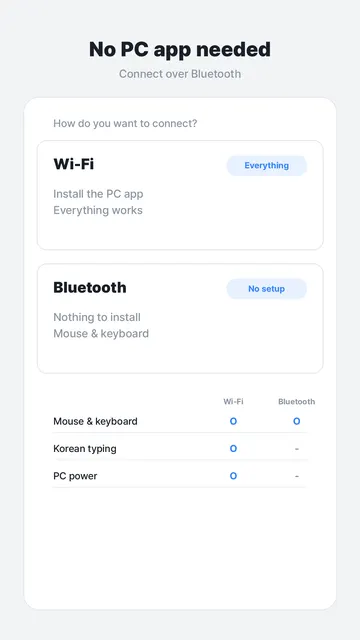
- Bluetooth: nothing to install on the PC. Your phone appears as a wireless mouse and keyboard. It also works with smart TVs and consoles.
- Wi-Fi: install the small free PC app and everything works, including typing in your own language and shutting the PC down.
TOUCHPAD THAT FEELS RIGHT
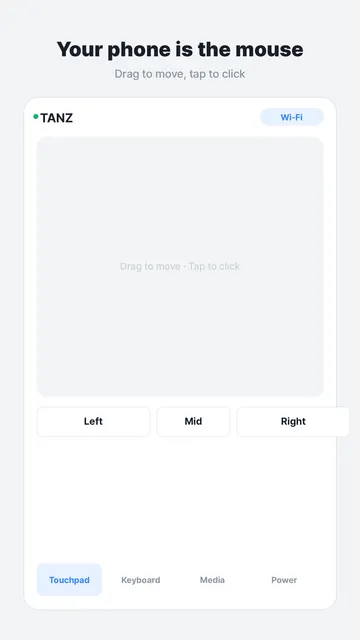
- Drag to move the cursor, tap to click
- Two-finger tap for right click, three fingers for middle click
- Two-finger drag to scroll pages and documents
- Tap then drag, or press and hold, to drag windows and select text
- Adjustable pointer speed from 30% to 300%
REMOTE KEYBOARD
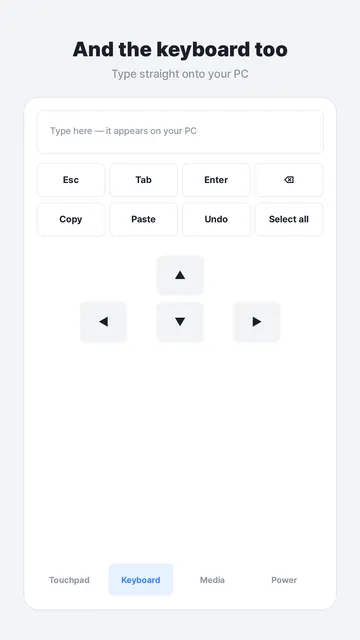
- Type on your phone and the text appears on your PC
- Esc, Tab, Enter, Backspace and arrow keys
- Copy, paste, undo and select all
- Start menu, Alt+Tab, Alt+F4 and screenshot
MEDIA CONTROL AND PRESENTATIONS
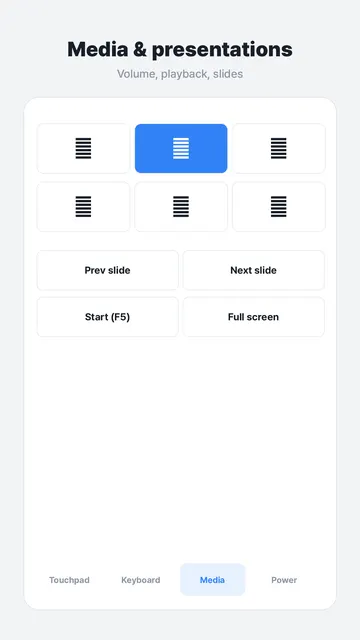
- Play/pause, previous and next track
- Volume up, down and mute
- Previous and next slide, F5 to start a slideshow, full screen
PC POWER (WI-FI METHOD)
- Lock the screen, sleep, sign out, restart or shut down
- Everything except lock asks for confirmation first
- You can switch power control off entirely from the PC tray menu
GETTING STARTED
- Bluetooth: choose the Bluetooth method in the app. There is nothing to install on the PC.
- Wi-Fi: open tanzsoft.com/pcremote on your PC and run the downloaded file. There is no installer, just run it.
- Approve the first connection on the PC itself, then use your phone as a remote mouse and keyboard.
WHO IS THIS FOR?
- People who want a wireless touchpad and keyboard for their computer
- Anyone who controls music, videos, volume or slides from a distance
- Anyone who wants to restart or shut down their PC from a phone
- Users who want a remote mouse that also works with consoles and smart TVs
TIPS
- Tune the pointer speed until the cursor feels natural on your screen.
- Use Wi-Fi if you want to type in your own language or control PC power.
- Guest networks often block devices from reaching each other, so use your regular Wi-Fi.
COMMON QUESTIONS
- How do I connect? Use Bluetooth for a quick setup with nothing to install, or Wi-Fi by running the free PC app.
- Is my data safe? All communication stays on your local network. Nothing goes through our servers.
- Is it free? Yes. The app is supported by a small banner ad, with no account required.
- What if Bluetooth doesn't work? If your phone's firmware lacks the Bluetooth keyboard/mouse feature, the app tells you and you can switch to the Wi-Fi method.
PRIVACY: STAYS ON YOUR OWN NETWORK
Your phone talks to your PC directly. Nothing goes through our servers, and we cannot see your screen or what you type. The PC app refuses connections from the internet, and the first connection must be approved on the PC itself.
FREE
Supported by a small banner ad. No time limits, no sign-up, no account.
NOTES
- Bluetooth cannot control PC power, and typing non-Latin text over Bluetooth depends on your PC's input method.
- Some phone makers remove the Bluetooth keyboard/mouse feature from their firmware. If that happens, the app tells you and you can use the Wi-Fi method instead.
- Phone and PC must be on the same Wi-Fi for the Wi-Fi method.
PC Remote: your phone as a wireless mouse, touchpad and keyboard for your computer.